


Stock Listed on Mobius Is Now Open for Bids


Before this release, a buyer who found a part on Mobius had two options in the app: pay the Buy Now price, or wait for the part to enter an auction. A bid on anything else meant contacting our team. Sellers could accept bids in the app only as part of an auction.
Listings open for bids now appear on each part's product page under Stock Listed on Mobius, where buyers can bid at any time. For manufacturers who both buy and sell on Mobius, the change works in both directions.
Two ways to buy on the product page
Mobius Preferred Stock is available now at the Mobius price, with checkout by card, ACH, or wire. Parts ship from Mobius inspection facilities.
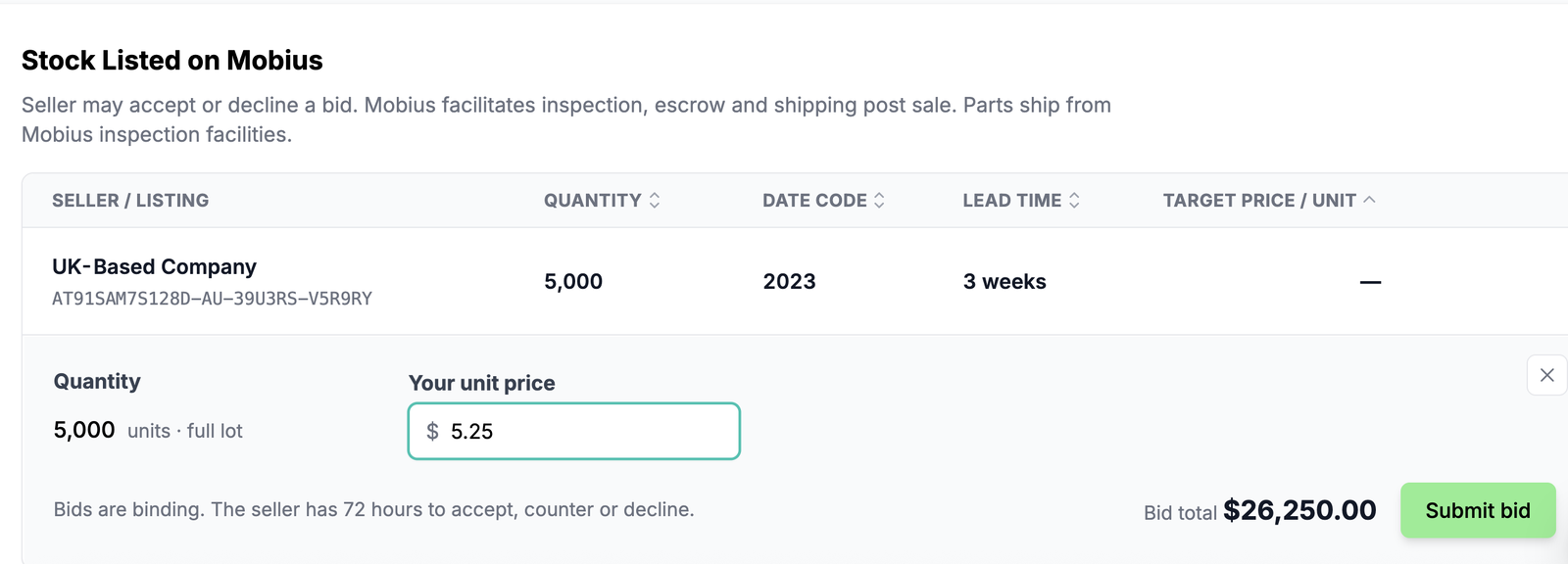
Stock Listed on Mobius shows listings that accept bids, with the quantity and lead time for each, plus the date code and target price when the seller provides them. Listings in an auction appear here too and show the auction's close date, so you can bid on them from the same page.
How a bid works
Select Place bid on a listing and enter your unit price. When the seller has set a target price, the field starts with a suggested bid based on it, and the form totals your bid before you submit.
Bids are binding. A bid on a listing outside an auction goes to the seller, who can accept, counter, or decline it. A bid on an auction listing stands until the auction closes, and once you place it you can see the current top bid.
If you have a Mobius account, your bid goes straight to the seller. If you do not, enter your work email and we send you an invitation to register. Once you register and complete verification, we confirm the bid with you and send it to the seller. After the sale, Mobius handles inspection, escrow, and shipping.
What changes when you sell
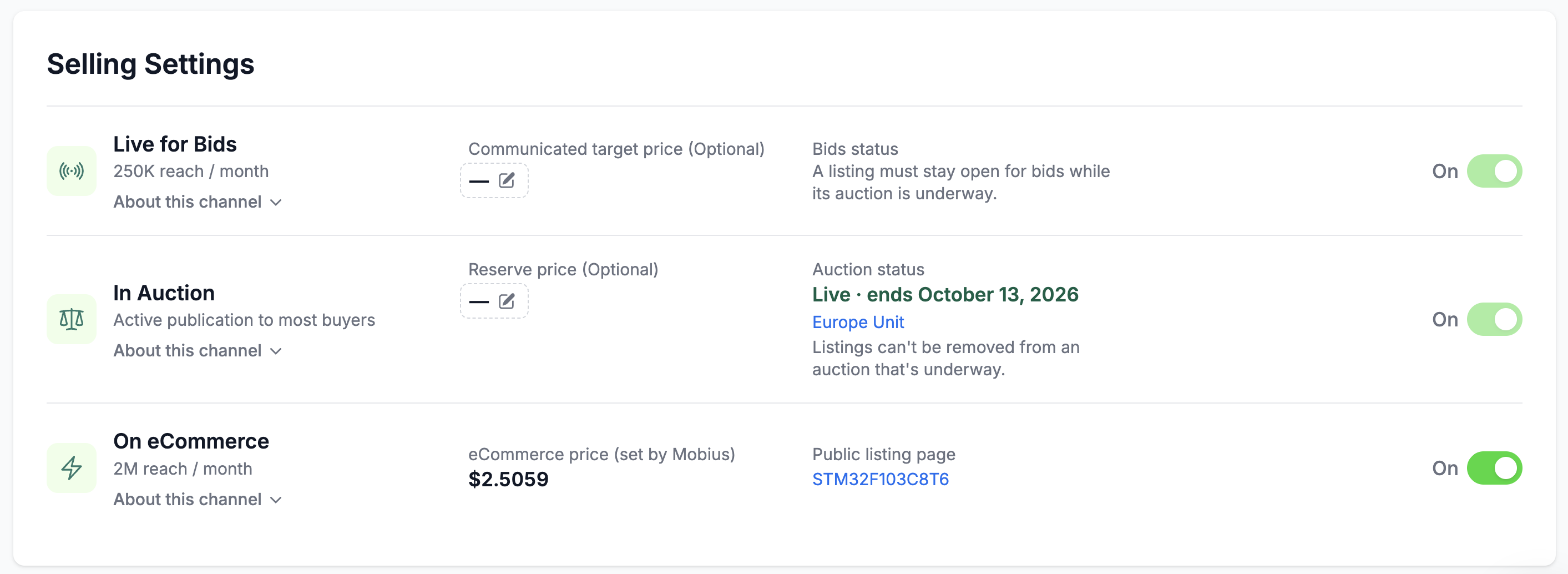
Turn on Live for Bids in a listing's Selling Settings, and the listing takes bids at any time, without waiting for an auction. We publicize it on our store and send it to partner distribution lists, with a reach of about 250,000 impressions a month.
Bids from the product page arrive in the same offers view as auction bids, and you handle them the same way. Your company name stays off the product page, which shows buyers only a general description such as US-Based Company.
Selling Settings puts all three distribution channels on one panel: Live for Bids, In Auction, and On eCommerce, with your target and reserve prices beside them. On the Inventory page, listings now sort into a tab for each channel.
Prices on excess components move between auctions. A listing open for bids lets an offer arrive when a buyer needs the part, and it gives you a real number to weigh against your target.
Bidding is live on Mobius product pages
Find the part you need and place a bid from its product page.
If you hold excess inventory, our team can help you choose which channels fit each part.
Talk with us about selling your excess inventory


